Resequence Waypoint Mission
Instructions

Instructions
- In page one of Resequence Waypoint Mission:
- Select the new desired starting waypoint number.
- Use the file chooser to upload a DJI KMZ, or Litchi CSV file.
- Resequence the mission and review the resulting parameters.
- In page two of Resequence Waypoint Mission:
- Review the parameters and calculations.
- Download the Litchi CSV file.
- In the Litchi Mission Hub:
- Import the Litchi CSV file as a new mission.
- Be sure to re-apply any global settings that may have been in the original waypoint mission. These global settings may include:
- Drone Model
- Path Mode
- Heading Mode
- Finish Action
- Go fly!
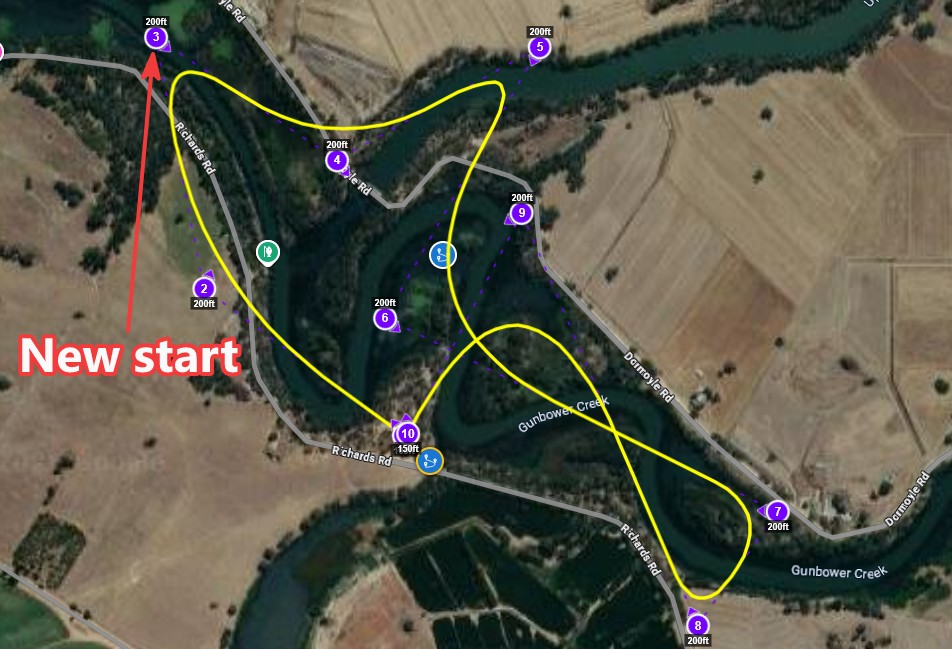
Resequence a Litchi waypoint mission by rotating the waypoint order. Choose a new starting waypoint, and the entire mission will be reordered so the flight begins at that waypoint while preserving the original flight path.
Either a DJI KMZ file or a Litchi CSV file exported from the Legacy Mission Hub may be use as the input.
The resequenced CSV file contains only waypoint data and does not include global mission settings such as the drone model, path mode, heading mode, finish action, cruising speed, or other mission-wide parameters. These settings must be applied after importing the resequenced mission into Litchi's Mission Hub.
Caution: If the mission uses the Above Ground option, ensure that the ground elevation at the new starting waypoint is similar to that of the original starting waypoint. A significant difference in ground elevation will result in incorrect waypoint heights after the mission is resequenced.